A streaming bitrate calculator checks whether your upload speed can carry the video and audio bitrate you plan to send from OBS, then shows the recording size and the data viewers use. Enter a measured upload speed, keep a safety margin, and compare with Twitch and YouTube settings.
Runs entirely in your browser; nothing you type is sent to our server. MB and GB are decimal.
How the calculator decides
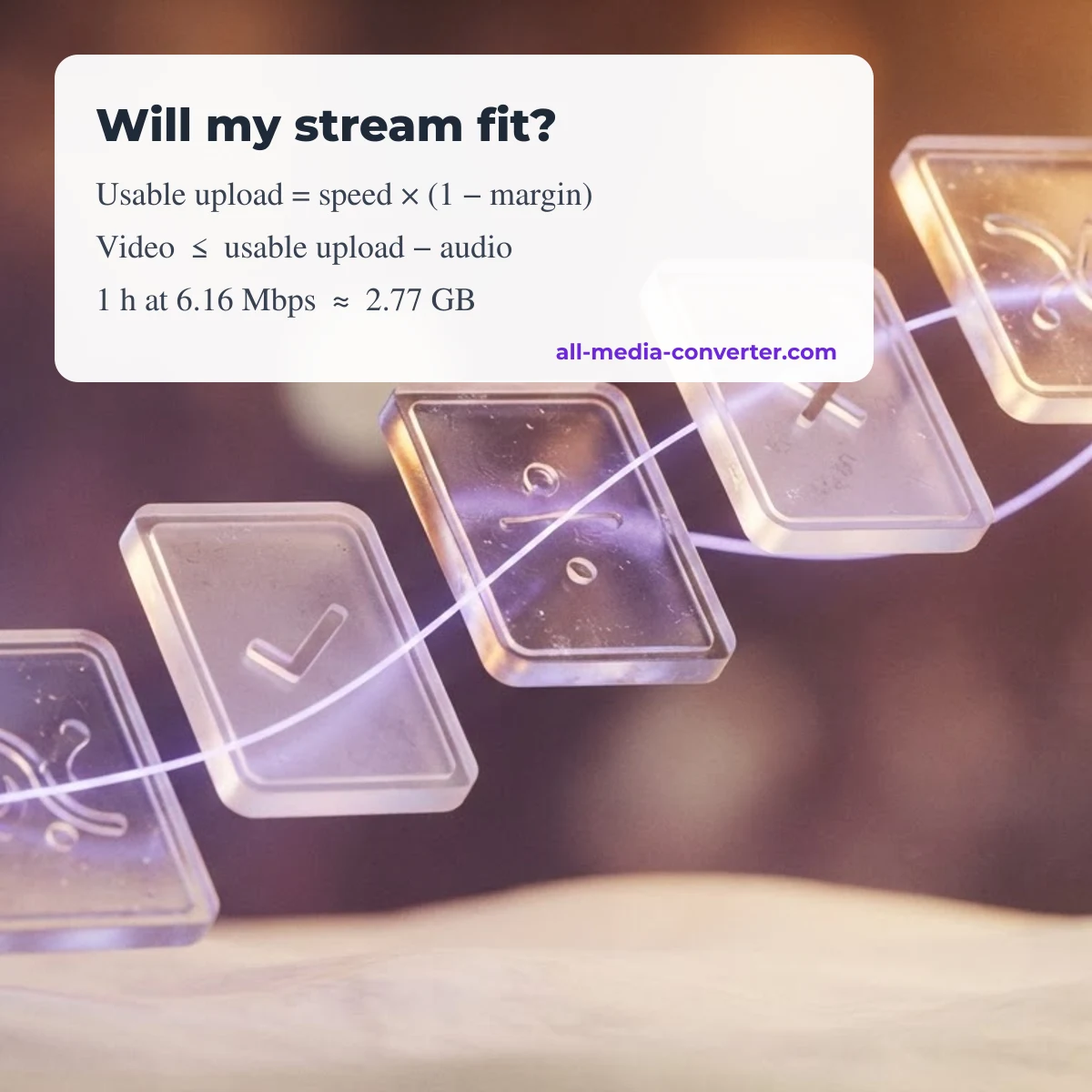
- Usable upload = measured upload × (1 − safety margin). Upload speed varies during a stream, so leaving headroom avoids dropped frames; 25% is our default, not a platform rule.
- Highest video bitrate = usable upload − audio bitrate.
- Your plan fits if video + audio is at or below the usable upload.
- Recording size = total bitrate × seconds ÷ 8, the same formula as the file size calculator.
Measure upload with a speed test to a server near the platform's ingest, at the time of day you stream.
YouTube Live bitrate by resolution
| Resolution | 30 fps H.264 | 60 fps H.264 | 30 fps H.265/AV1 | 60 fps H.265/AV1 |
|---|---|---|---|---|
| 2160p | 11–42 | 14–50 | 8–30 | 10–35 |
| 1440p | 7–21 | 8–34 | 5–15 | 6–24 |
| 1080p | 5–14 | 6–17 | 4–10 | 4–12 |
| 720p | 3–8 | 3–8 | 2–6 | 2–6 |
Mbps, minimum to recommended, from the YouTube Help article «Choose live encoder settings, bitrates, and resolutions», checked October 9, 2026. The same page recommends 128 kbps stereo audio (384 kbps for 5.1) and a keyframe interval of 2 seconds, never more than 4.
Twitch
The Twitch Help article «Broadcasting Guidelines», checked October 9, 2026 lists 6,000 kbps for 1080p at 60 fps with a 2-second keyframe interval as its reference setting. Viewers on slower connections may need transcoded quality options, so many streamers use a lower bitrate or 720p. The dedicated Twitch bitrate calculator in this section scales that reference to other resolutions and frame rates.
Entering the result in OBS
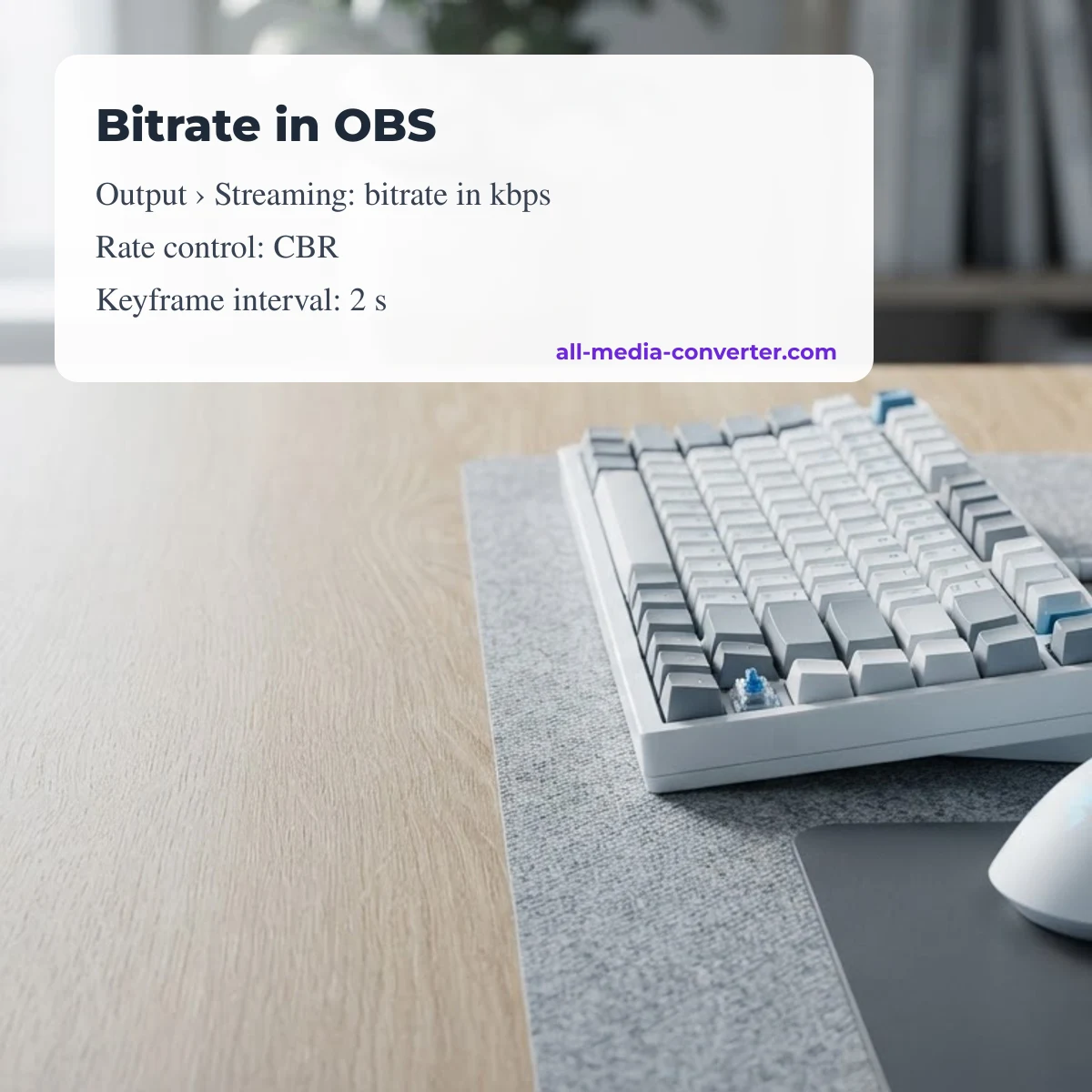
- Settings › Output › Streaming: set the video bitrate in kbps (Mbps × 1,000) and the audio bitrate.
- Use constant bitrate (CBR) for live streaming unless the platform says otherwise.
- Set the keyframe interval to 2 seconds.
- Watch the dropped-frames counter during a test stream; if it climbs, lower the bitrate or raise the safety margin.
More calculators
Plan recordings and exports with the Video file size & bitrate calculator.
Share your result or suggest a fix
Compared these numbers with a real file or stream? Leave a comment with your settings and what you measured. Comments are moderated; approved comments appear with their date. There are no usage counters on this page.
FAQ
What bitrate should I stream at?
Pick the platform's recommendation for your resolution and frame rate, then make sure video + audio stays under your upload speed minus a safety margin; the calculator checks both.
How much upload speed do I need for 1080p 60 fps?
For Twitch's 6,000 kbps reference plus 160 kbps audio and a 25% margin, about 8.2 Mbps of measured upload.
How big is a 1-hour stream recording at 6 Mbps?
6.16 Mbps (with 160 kbps audio) × 3,600 s ÷ 8 ≈ 2.77 GB.
What keyframe interval should I use?
2 seconds; YouTube says not to exceed 4 seconds, and Twitch's reference setting is 2 seconds.
Updated October 15, 2026 · All Media Converter editorial team
Was this page helpful?
Your vote helps us decide which tutorials to update first.
Thanks for your feedback!